
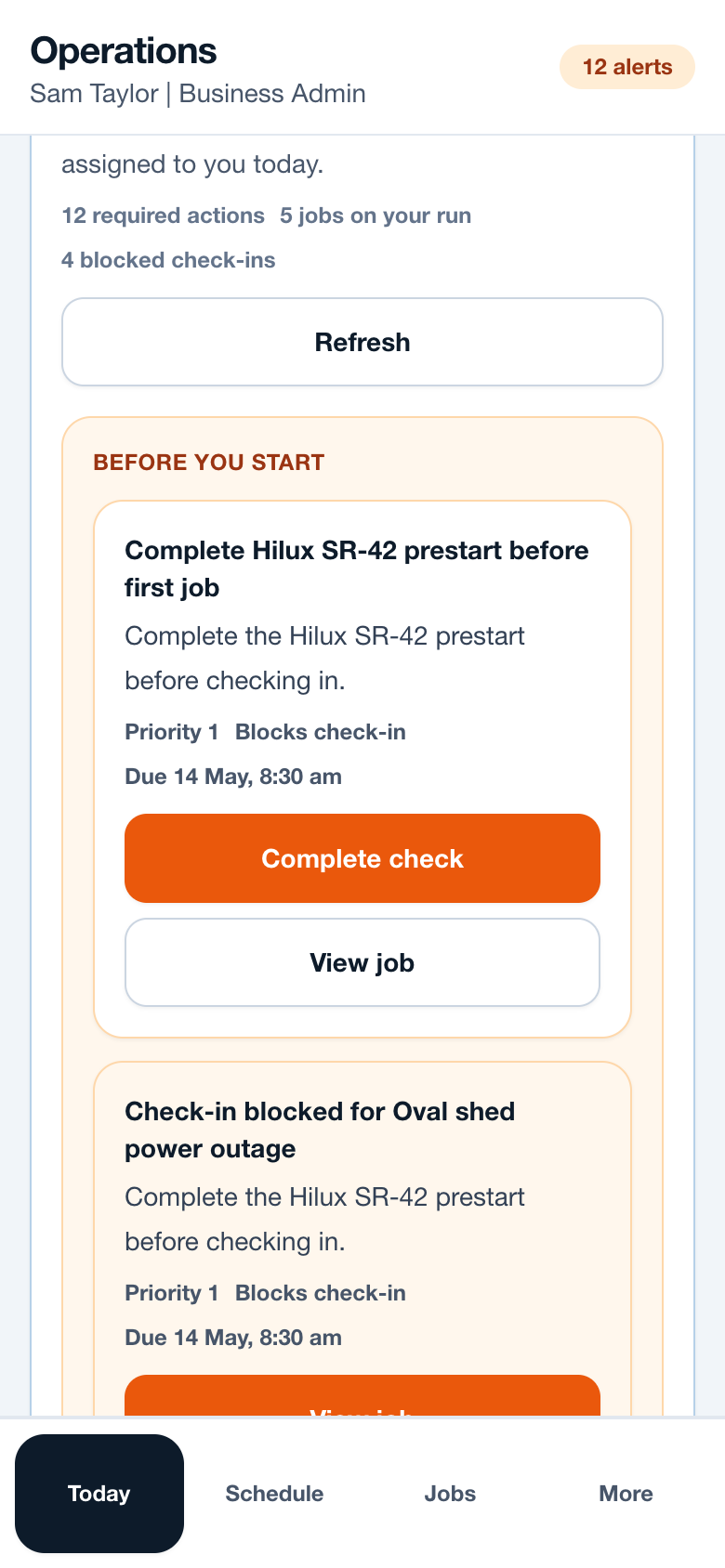
Workflow
- Open the assigned job from Today or Schedule.
- Review the address, site access notes, client contact and preparation notes.
- Start travel if the business tracks travel time.
- Tap Check in or Arrive once the required checks are complete.
- If blocked, read the reason and follow the linked action before trying again.
Operational notes
- Server-side checks confirm the worker is assigned to the job before check-in is accepted.
- Vehicle readiness, site requirements and critical defects can block field actions where the business enables those rules.
- Blocked attempts should be visible to admins so the office can see why work was delayed.
Common mistakes to avoid
- Assuming a blocked check-in means the job cannot be opened.
- Using Arrive to bypass a missing prestart or site requirement.
- Leaving travel or onsite time unrecorded when the business relies on timesheets.
Mobile notes
- Keep location permission language plain so workers understand why arrival capture is requested.
- Use Open maps from the job detail rather than copying addresses manually.
- Retry a blocked action after completing the required check.
Ready to try this workflow?
Open SiteRun, create one real job record and test the steps with the crew member who will use it onsite.