
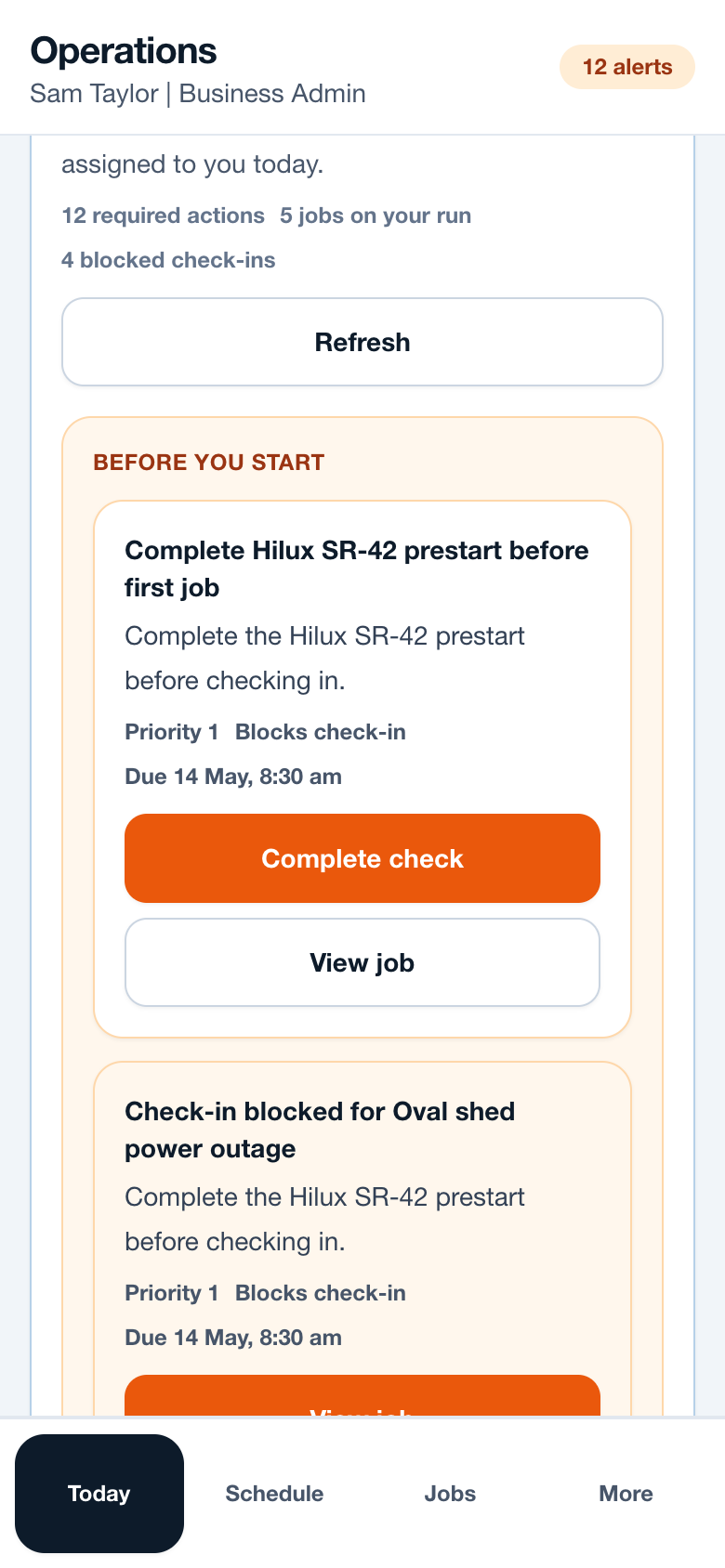
Workflow
- Open Today at the start of the day.
- Complete any required action shown before the first job, such as a Hilux prestart.
- Open each job to check address, maps, site access notes and preparation details.
- Check in or mark arrived when the job is ready and the business rules allow it.
- Add job notes, photos and sign-off details before moving to the next site.
Operational notes
- A blocked check-in does not hide the job. Workers can still see the address, contact and site notes.
- Photos are job records, not social gallery items. Capture the proof the office needs for closeout.
- If mobile signal is poor, workers should save notes clearly and retry uploads when back online.
Common mistakes to avoid
- Driving to site without opening the job access notes.
- Waiting until the end of the day to upload photos.
- Using generic notes such as done instead of writing what was actually completed.
Mobile notes
- Use the bottom navigation: Today, Schedule, Jobs and More.
- Use large buttons for Check in, Arrive, Add photo and Sign off.
- Avoid clearing browser/app data while offline notes are waiting to sync.
Ready to try this workflow?
Open SiteRun, create one real job record and test the steps with the crew member who will use it onsite.