
Screenshot demo: walk the reviewer flow
Use these screens as the short demo path for training, QA and store-review preparation.
Step 1
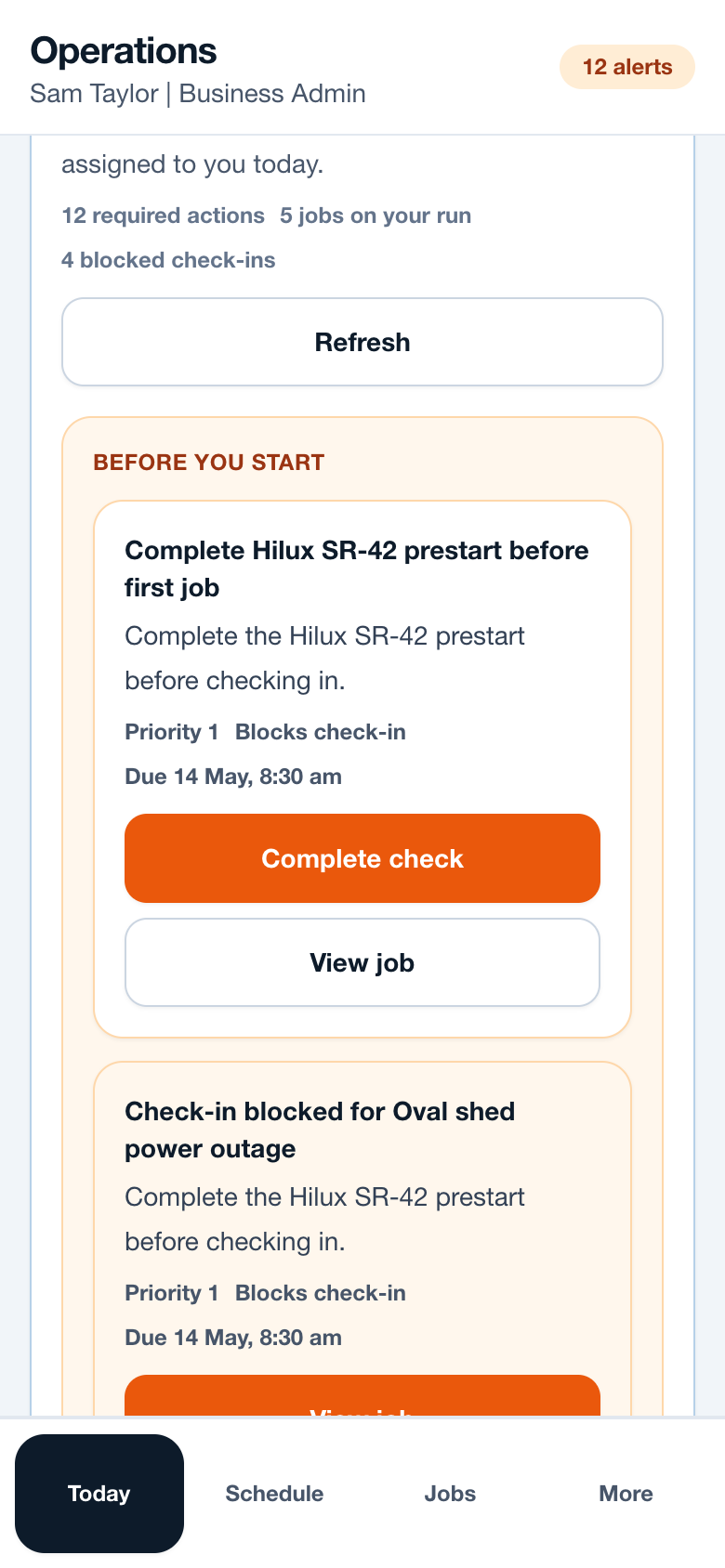
Open Today first
Start with the field view. The worker sees required actions, assigned jobs and blocked reasons before the day gets busy.
Step 2
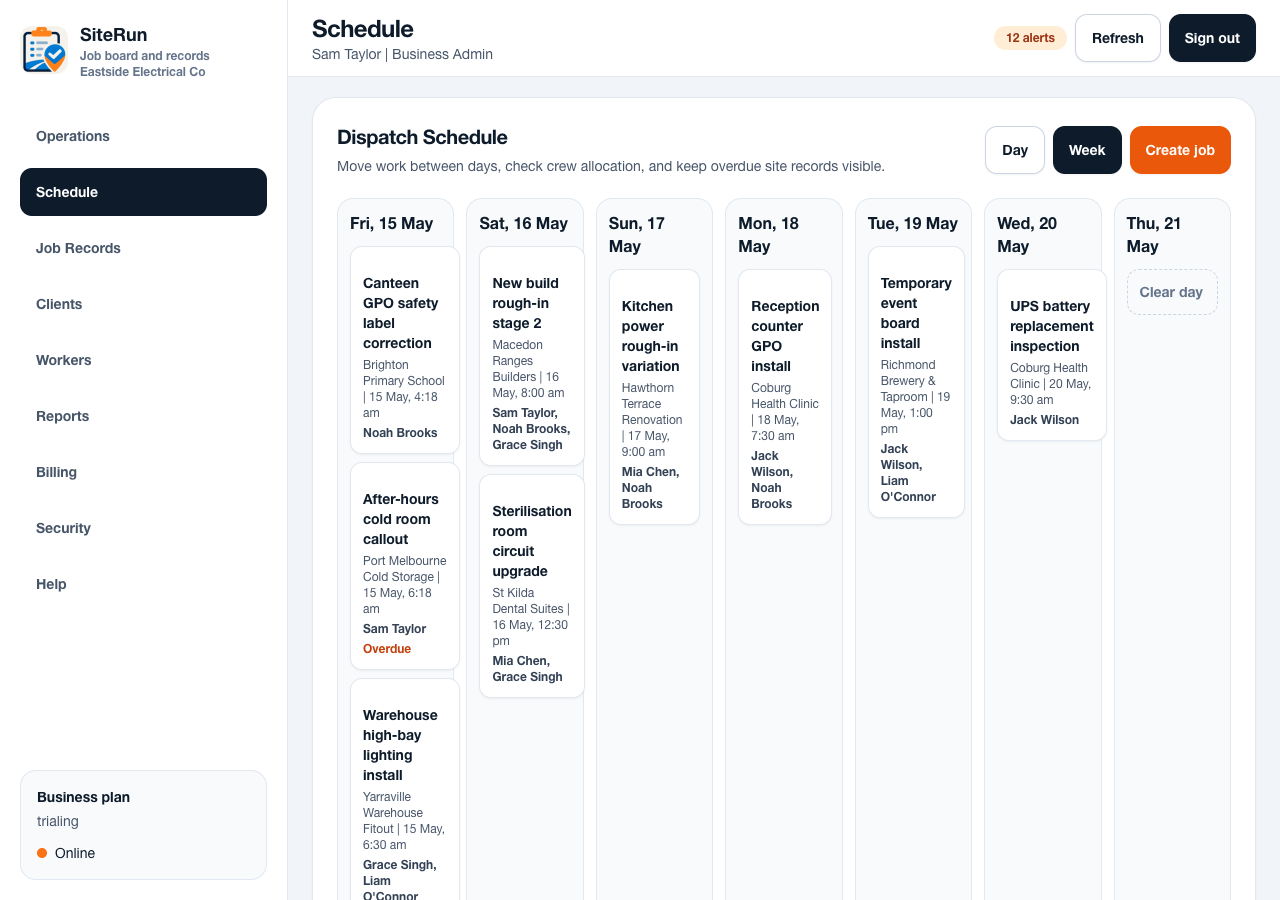
Review the schedule
Admins and workers can confirm job timing, status and assignment from a schedule view that stays tied to the job record.
Step 3
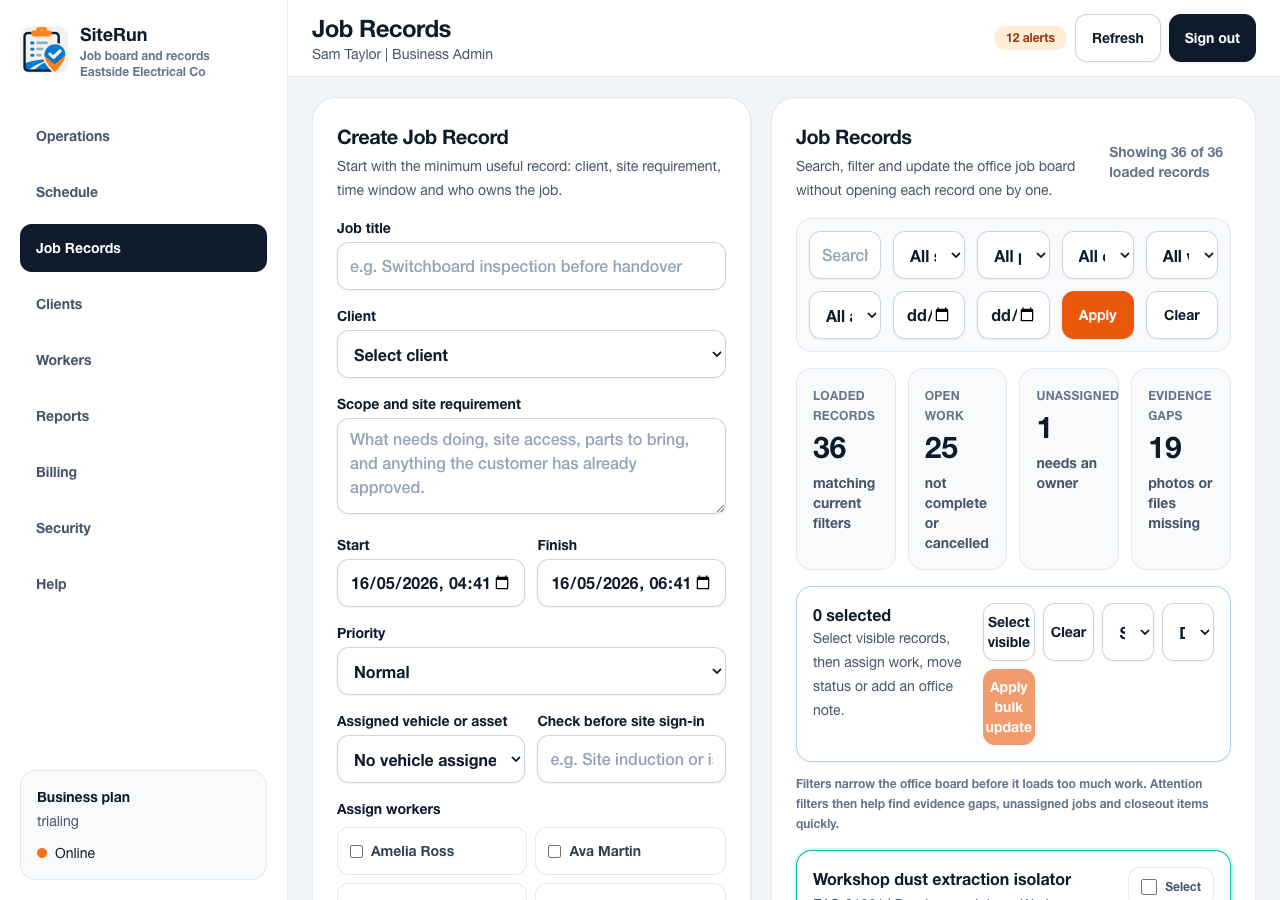
Capture the job record
The demo should end with a record the office can trust: client, site, scope, notes, photos and activity in one place.
Step 4
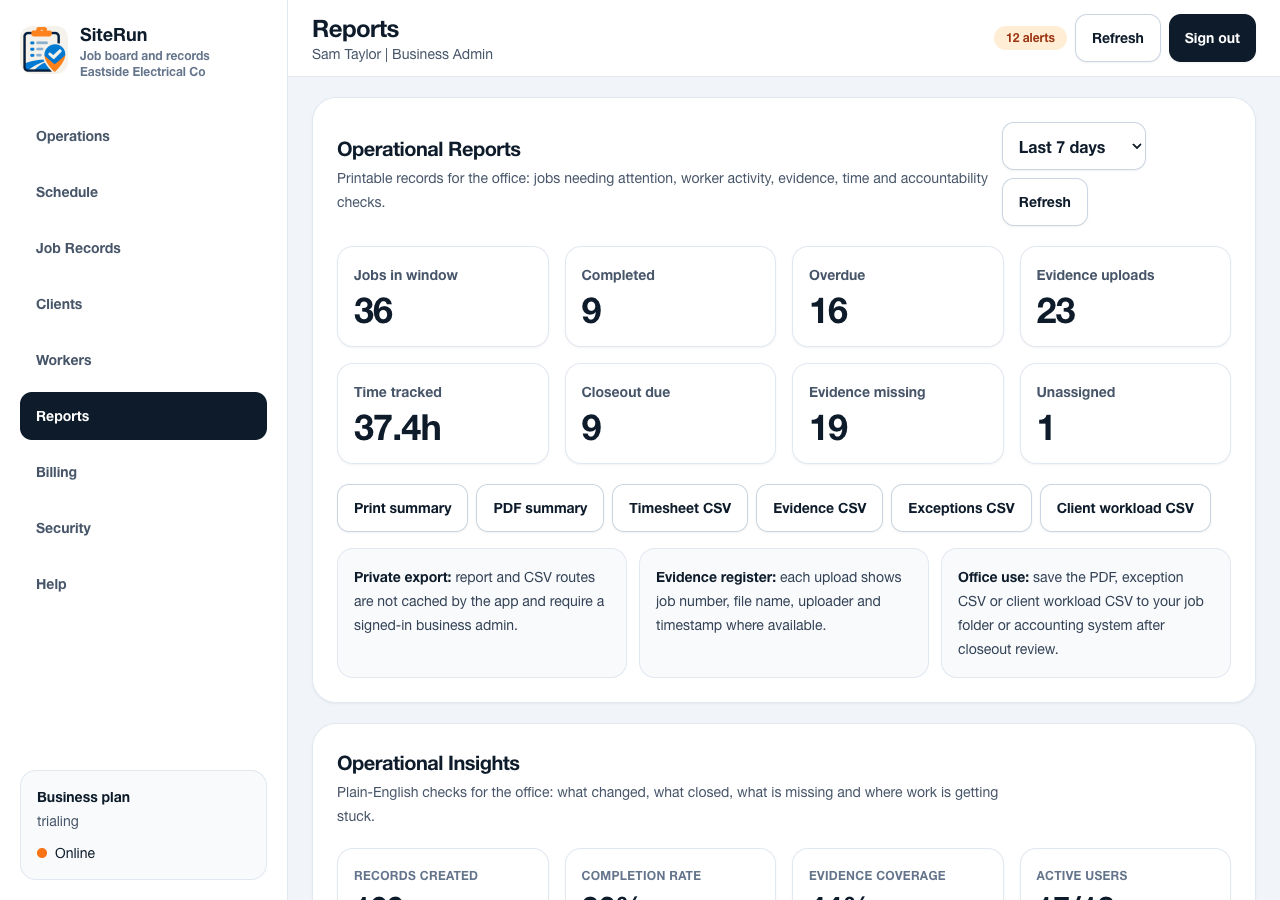
Show reporting last
Reports are the payoff: the day becomes a practical record for closeout, photo review and office follow-up.
Workflow
- Sign in with the reviewer worker account supplied in the private review notes to walk the field flow, or the reviewer admin account to walk the office flow.
- As the worker, start on Today and confirm required actions, assigned jobs and blocked reasons are understandable.
- Open Jobs to see My jobs, then open Schedule to confirm the worker only sees assigned work by day.
- Open a job record and confirm the first viewport shows when, where, client contact and field actions before management detail.
- As the admin, open Jobs and Schedule to confirm the full dispatch view, filters, bulk tools and worker allocation controls are still available.
- Use More to reach Help, Security and account controls without exposing checkout, pricing or upgrade paths in the native app.
Operational notes
- The native app is a companion app for workspace access. Billing and subscription management stay outside the native app.
- The reviewer worker account should have scheduled, on-site and completed jobs so Today, My jobs, job detail and My schedule can all be reviewed without creating new records.
- The reviewer admin account should be able to review the job record list, Quick Schedule, all-worker Schedule, reports, worker management and readiness controls.
- Screenshots used for store submissions should show product usage only, not pricing, trial, checkout, upgrade or external purchase prompts.
Common mistakes to avoid
- Starting the demo from a fresh signup path instead of an existing workspace account.
- Using screenshots that show placeholder data, empty states or purchase language.
- Skipping Help, Security and account deletion paths during reviewer preparation.
Mobile notes
- Test this flow on a small Android phone, a large Android phone, a small iPhone and a large iPhone before upload.
- Keep the phone unlocked during reviewer-style QA so deep links and magic-link handoff can be checked.
- Use real reviewer mailboxes in private reviewer notes only when those mailboxes are monitored for magic-link delivery.
Ready to try this workflow?
Open SiteRun, create one real job record and test the steps with the crew member who will use it onsite.